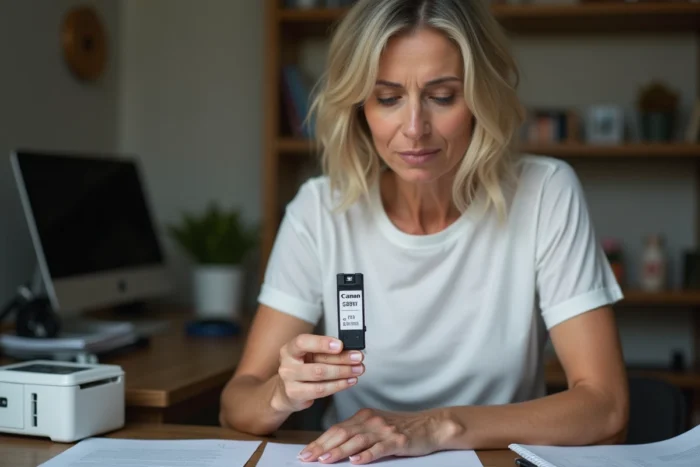
Your Canon printer displays “empty cartridge” even though you just refilled it. The message persists, and printing remains blocked. The problem does not come from the ink, but from the electronic chip soldered onto the cartridge: it retains the old level in memory and refuses to update. Resetting this chip allows you to resume printing without purchasing new consumables.
Canon electronic chip: what really blocks printing after refill
Each Canon cartridge contains a small chip that estimates the remaining ink quantity. This counter works by calculation, not by direct measurement of the liquid. The printer deduces the consumed ink based on the number of pages printed and the estimated coverage.
When the counter reaches zero, the chip sends a blocking signal. Even if you fill the cartridge to the brim, the counter remains at zero until it is reset. This logic makes the refill pointless without a reset.
Have you noticed that the message varies by model? On some Pixma models, the screen displays “unknown ink level.” On others, it’s an error code or a simple refusal to print. The wording changes, but the cause is the same: the chip has not been reset.
To understand in detail how to reset a Canon cartridge, you first need to identify whether your model uses standard cartridges or refillable tanks, as the method varies radically between the two.
Reset using the Stop button: the Canon method without external tools
The most accessible method requires no additional equipment. It involves forcing the printer to ignore the low ink alert via the control panel.
On most Pixma models, the procedure relies on the Stop button (or Cancel, marked with a red triangle). When the error message appears on the screen, hold this button down for about ten seconds. The printer then switches to degraded mode: it agrees to resume printing.

Be careful, this manipulation has a direct consequence. The printer will no longer display any ink level estimate for the affected cartridge. You will need to monitor the print quality yourself to detect when the ink actually runs out.
If multiple cartridges are reported empty, repeat the operation for each one. The printer processes alerts one at a time.
Chip reset: when the Stop button is no longer enough
On recent models with separate tanks and fixed heads, the Stop button allows you to ignore the alert, but does not reset the counter to zero. The chip retains its “empty” status in memory. As a result, every time you power on, the message reappears.
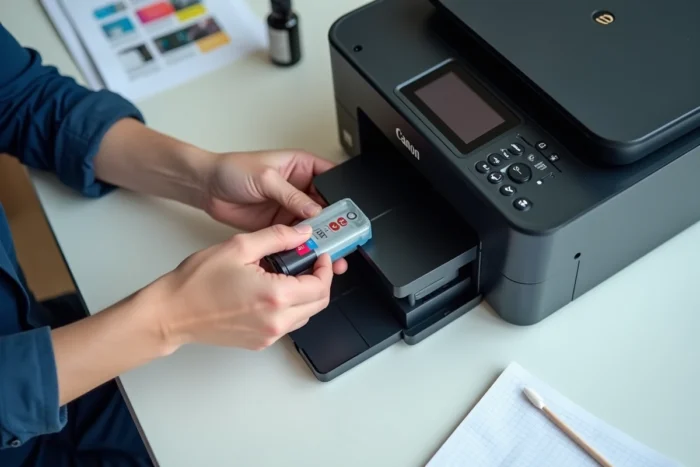
For these cases, a physical tool called a chip resetter becomes the most reliable solution. It is a small device with metal contacts that touches the cartridge chip and rewrites the “full” value.
Here’s how to use it:
- Remove the cartridge from the printer and identify the side where the chip is located (a small gold or copper plate with contacts)
- Place the cartridge in the resetter, chip side down, aligning the metal contacts of the device with those of the chip
- Apply light pressure for a few seconds until a light indicator changes from red to green, confirming the reset
- Reinstall the cartridge in the printer and run a test print
One point to check before purchasing: each resetter is designed for a specific series of cartridges. A model intended for PGI-520/CLI-521 will not work on PGI-580/CLI-581. The exact reference of your cartridges, listed on the label, determines the compatible resetter.
The resetter only works with original Canon chips. If you are already using compatible cartridges from another brand, their chip is generally programmed differently and does not require this tool.
Canon firmware and updates: the trap that cancels a successful reset
You successfully reset the chip, everything works, then one morning the printer refuses the cartridge again. What happened in the meantime?
Specialized technicians point to a factor often overlooked: automatic firmware updates can block a reset that was working. Canon regularly deploys software patches on its Pixma, TS, and MG series. Some of these updates change how the printer communicates with the chip, rendering an old resetter or method ineffective.
To avoid this situation, disable automatic firmware updates in the printer’s network settings. On most models, the option is found in the “Device Settings” menu under “Firmware Update.” Select manual update rather than automatic.
This setting allows you to choose whether or not to accept each update after reviewing its content. Refusing an update does not block any printing function: the printer continues to operate normally.
Standard cartridges or refillable tanks: two different reset logics
Why does the same brand impose such different methods? The answer lies in the hardware.
Pixma models with removable print heads (integrated into the cartridge) are generally more tolerant of refills and resets using the Stop button. The chip plays a secondary role: it informs but does not lock.
Recent models with separate tanks and fixed heads operate differently. The chip actively controls the permission to print. On these machines, ignoring the alert via the Stop button only masks the message without resetting the counter to zero. The physical resetter then becomes the only option for a true reset.
Before choosing your method, identify your exact model (listed on the label at the front of the printer) and check whether it uses cartridges with integrated heads or separate tanks. This distinction directly affects the success of the reset.
One last practical point: if the pages come out pale or streaked after a successful reset, the problem no longer comes from the counter. Run a nozzle cleaning from the printer’s maintenance menu before suspecting the cartridge itself.